Your approved creative is in a Google Drive folder, the content plan is in Asana, and the briefs are in Notion. Every week someone downloads the files, re-uploads them, and copies captions across one at a time. Now you can connect those tools to Sked Social once from Settings → Integrations, and what you need arrives where you plan and schedule.
What's new
Sked Social now has native integrations with the tools your team already uses. You connect them once, choose which folders, projects, or boards to bring in, and they sync automatically from then on.
Your media, synced into the Library
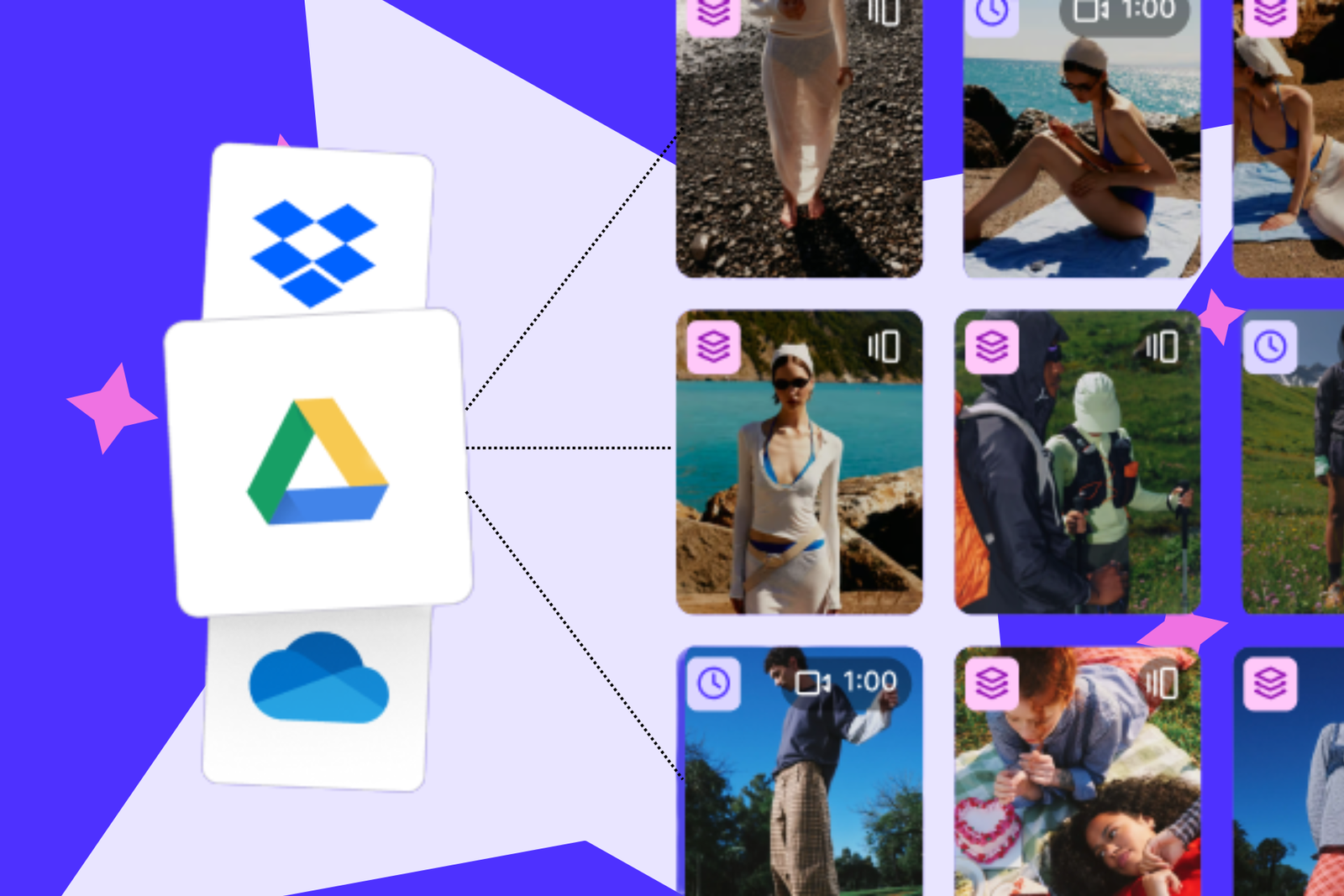
Connect Google Drive, Dropbox, or OneDrive and choose the folders you want. Images and video in those folders sync into your Sked Social Library, so they're ready to attach when you build a post. Google Drive includes Shared Drives, and OneDrive works with both personal and work accounts. You can also pull finished designs in from Canva.
If you've ever downloaded a file from Drive just to upload it somewhere else, that step is gone.
Your plans, synced into Ideas
Connect Asana, ClickUp, Monday.com, Trello, or Notion and choose the projects, lists, boards, or databases that hold your content plan. Each task, card, or page arrives in Sked Social as an idea. Asana keeps your tags and due dates, and files attached in any of these tools land in your Library.
Your project manager keeps planning in the tool they like, and your social team picks those ideas up in Sked Social without anyone copying them across. Google Sheets and RSS feeds can fill your Ideas board the same way.
Inbox conversations, sent to your help desk
When a comment or DM turns into a support issue, you can send it from your Sked Social Inbox straight to Zendesk, HubSpot, or Salesforce. It arrives as a ticket or case with the conversation transcript, the person's social handle, and a link back to the thread. Your support team gets the full context, and your social team gets back to the inbox. HubSpot and Salesforce are in beta.
[NOTE: this section depends on Inbox Automations. Remove it if that hasn't shipped by the publish date.]
How to connect
Open Settings from your profile icon in the top right, then select Integrations. Find your tool and select Connect. Check out our help center for step-by-step setup instructions, and here are some quick links below:
- Connect Google Drive to your Library
- Connect Notion, Asana, Trello, ClickUp, or Monday.com to Ideas
- Connect Dropbox and OneDrive
- Connect Claude to Sked Social
- Connect Monday.com to Sked Social
- Connecting RSS Feeds to Sked Ideas
- Connect Google sheets to Ideas and sync directly into Sked
- Connect Google Analytics 4