Inbox Metrics shows how many messages came in, how fast your team replied, who did the work, and what is still waiting. Numbers update daily and run through yesterday.
What's new, and what it means
Seven numbers, each with a trend
Messages received, Replies sent, Response rate, Opened conversations, Closed conversations, Avg first response time, and Avg time to close sit at the top of the page. Each one is compared with the previous period of the same length. When your manager asks how the Inbox is going, you open the page and point.
Response times that skip the weekend
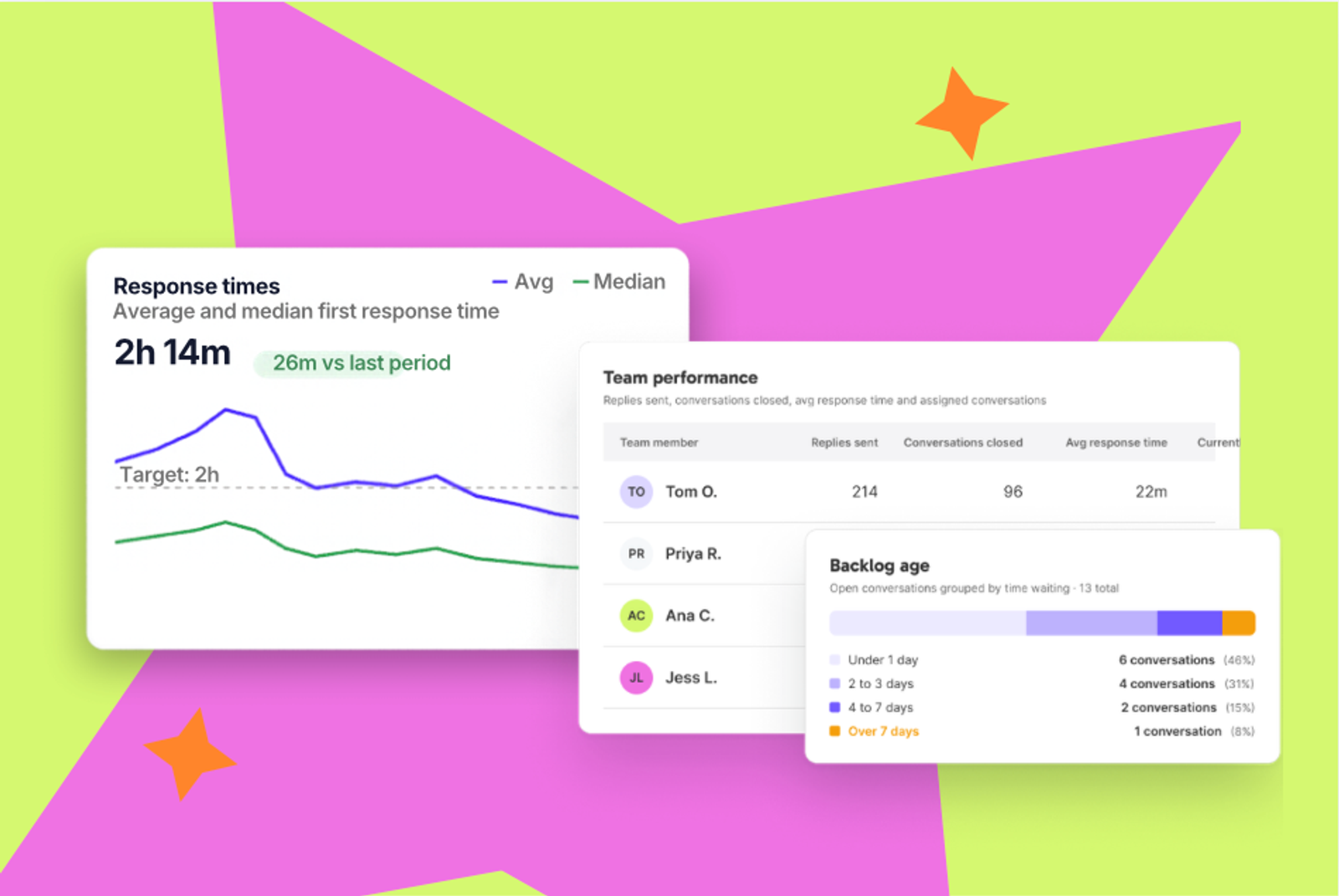
The First response time and Time to close charts show the average and the median over time. Switch between calendar hours and business hours. A DM that lands Friday at 4pm and gets a reply Monday at 10am took 66 calendar hours. On standard 9am to 5pm weekday hours, that is two business hours.
Switch to business hours and the weekend stops counting against your team.
See who is doing the work
The Team performance table lists replies sent, conversations closed, average first response time, and conversations assigned for each team member. Replies are credited to the person who sent them. If you use an AI agent, it appears as a row under its owner. You'll see who replied, who closed, and who is carrying the load before your Monday catch-up.
Staff for the hours that matter
Busiest times shows the average number of messages by day and hour. Inbound volume splits messages received by network or message type, day by day. If a client's Instagram volume doubles, you can see the date it started and which network it came from.
Find what is waiting, and what people ask about
Backlog age groups open conversations by how long they have waited: under a day, one to three days, four to seven days, and over seven days. Conversations by tag counts conversations per tag, with the change against the previous period. If shipping questions jump 12%, you can fix the FAQ before the next hundred DMs arrive.
One Board per client or location
Filter by Board and date range. Set up a Board per client or location, and each one's numbers are a click away. There are no Meta Business Suite invitations to send or manage.
Turn it into a report
Create report turns the dashboard into a report, so the Inbox numbers are already in the format you send. [NOTE: confirm Create report ships at launch (SKE-5097, SKE-5433 in progress). Delete this section if it doesn't.]
Updated daily
Numbers refresh overnight and run through yesterday. For what needs a reply right now, the unread and awaiting reply counters in the Inbox still show the current queue.
Availability
Inbox Metrics is available on Custom plans. On other plans, you'll see a summary card in Insights with a way to find out more. Inbox is still on every plan.
Business hours follow your account timezone, so there's nothing to set up.
Get started
On a Custom plan: Open Inbox Metrics in Insights
On another plan: Talk to sales
Want the detail on how each number is calculated? Read How to read Inbox Metrics