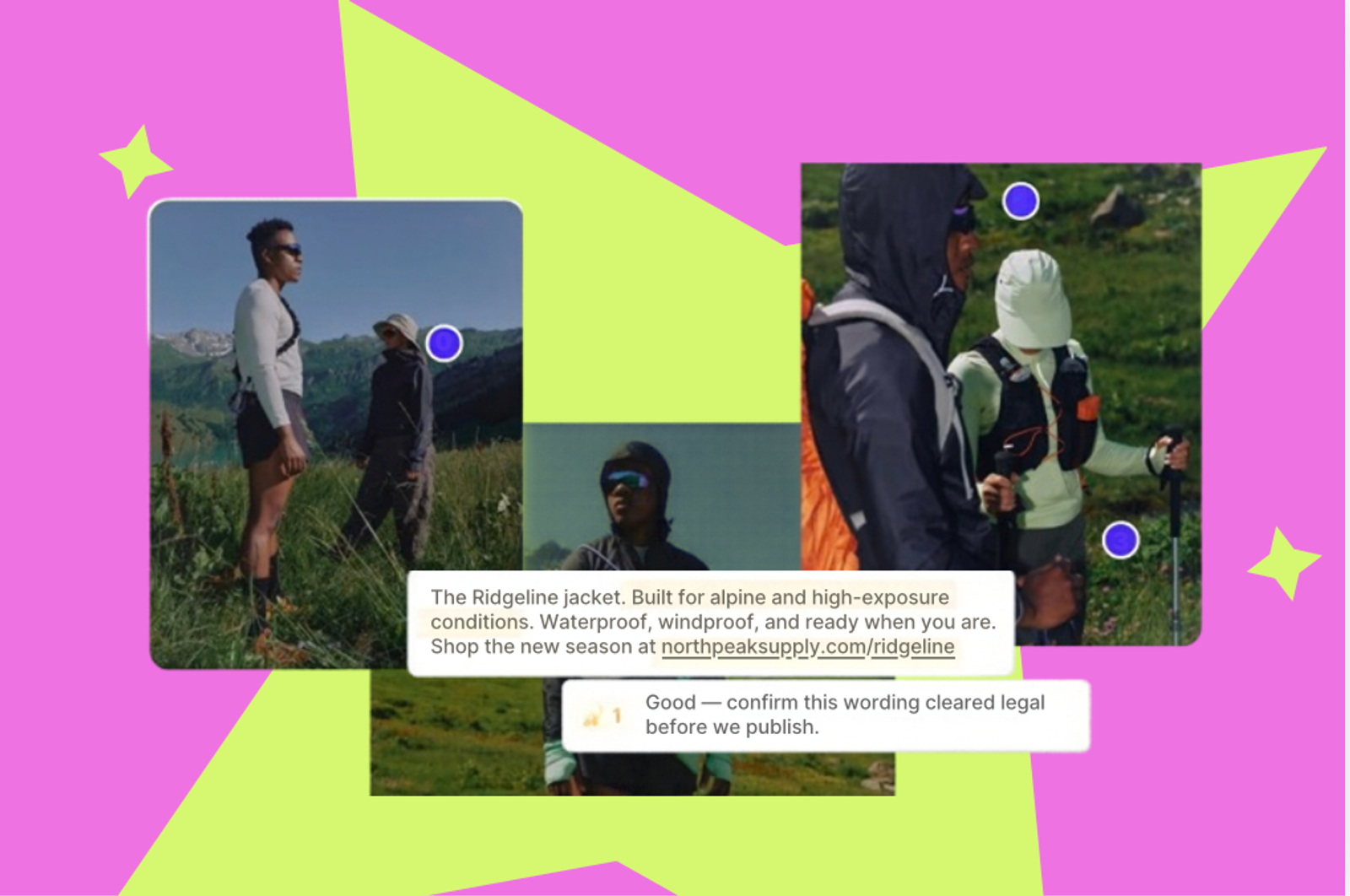
Reviewers can now place a numbered pin on an image or video and highlight a range of caption text, each with its own comment. Feedback is attached to the exact thing it's about.
Until now, a reviewer who wanted something changed had to describe it in a comment, and your team had to interpret that description before revising. Annotations lets reviewers point at the thing instead.
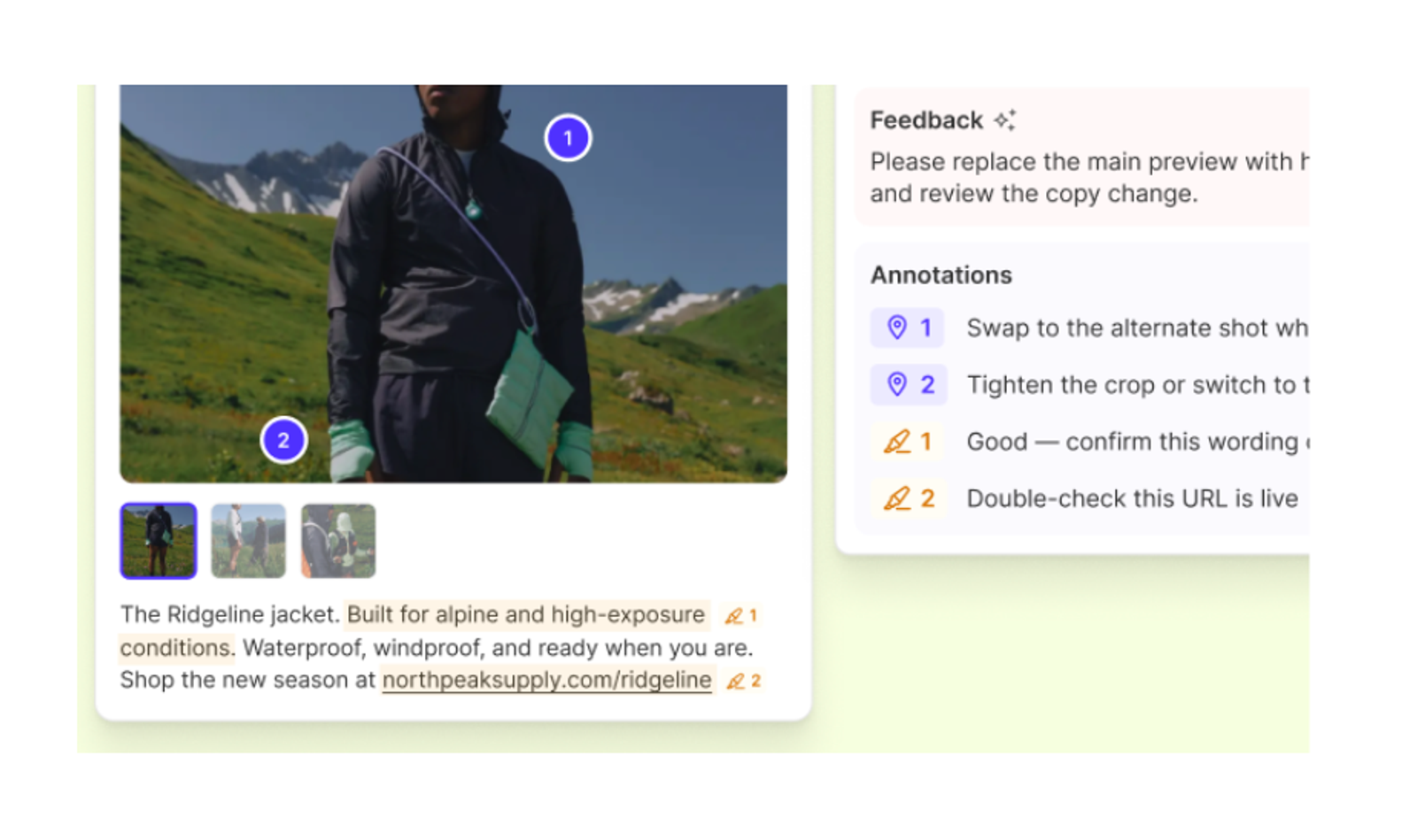
Reviewers can pin a comment to any point on an image or video, or highlight the exact caption text they mean. Pins and highlights work across three places in Sked Social: the external approval link, the internal dashboard, and the media editor.
What's new
Pins on images and video
Click any point on an image or video to place a numbered pin and attach a comment. Pins are numbered and stackable, so one asset can carry several separate notes.
Highlights in captions
Select a range of caption text, highlight it, and add a comment. Highlights stay visible in the activity feed alongside the comment.
Annotations on the approval link
External annotations are part of External approvals. Turn on Show annotations + highlights in the Approval Link Settings for a link, and reviewers on that link see annotation mode in place of the standard preview. When a reviewer requests changes, they can pin and highlight without logging in. Their feedback lands in Sked Social labeled by type and linked to the pin or highlighted text it refers to.
The Markup tab for your team
Open any post and go to the Markup tab in the teamwork panel. Select Pin to comment on a point in the image or video, or Highlight Text to comment on a range of caption text. Internal annotations are available to all users on all plans.
One activity feed
Annotations appear in the shared activity feed alongside plain comments and status changes, so a post's review history stays in one place.
Resolve feedback as you address it
When a change request includes annotations, each pin and highlight has a Resolve button. Resolving marks the item as addressed and logs it in the activity feed. Resolved annotations collapse by default but stay in the post history, and you can reopen one if it was resolved by mistake.
Resolving is separate from the approval decision. Posts can still move through approval and publish with annotations outstanding, so use Resolve to track what's been acted on.
A summary when a reviewer leaves pins without a comment
When an external reviewer submits a change request with annotations but no general comment, Sked Social generates a plain-English summary of the feedback and attaches it to the activity entry. The pins and highlights stay fully visible underneath.
Who it's for
- Agencies using approval links with clients get feedback tied to the exact part of the image or caption, from reviewers who don't need a Sked Social login.
- Teams with internal reviewers, such as brand or legal, can flag exact wording or visuals from the Markup tab, inside the post they're already reviewing.
Where to find it
- Open any post and go to the Markup tab in the teamwork panel.
- Select Pin to comment on a point in the image or video, or Highlight Text to comment on a range of caption text.
- With External approvals, turn on Show annotations + highlights in Approval Link Settings for each link where you want reviewers to annotate.
- When a change request with annotations comes in, click Resolve on each pin or highlight as you address it.
Full detail is in the Help Center article, How to use Annotations to collect and manage content feedback.
The bigger picture
Approvals in Sked Social already lets external reviewers look over content without logging in, and the Approvals Board shows every post as a card grouped by approval status. Annotations adds a way to say exactly what needs to change, on the asset or caption itself.
Internal annotations are on all plans. Annotations on approval links are part of External approvals.
Open any post and head to the Markup tab.
If you have questions, our support team is available 24/7.