On this page
- Key takeaways
- Can you schedule Instagram Stories with a link sticker?
- Auto-publish vs notification posts: what's the difference?
- How to add a link sticker to an Instagram Story
- How to schedule an Instagram Story with a link sticker in Sked Social
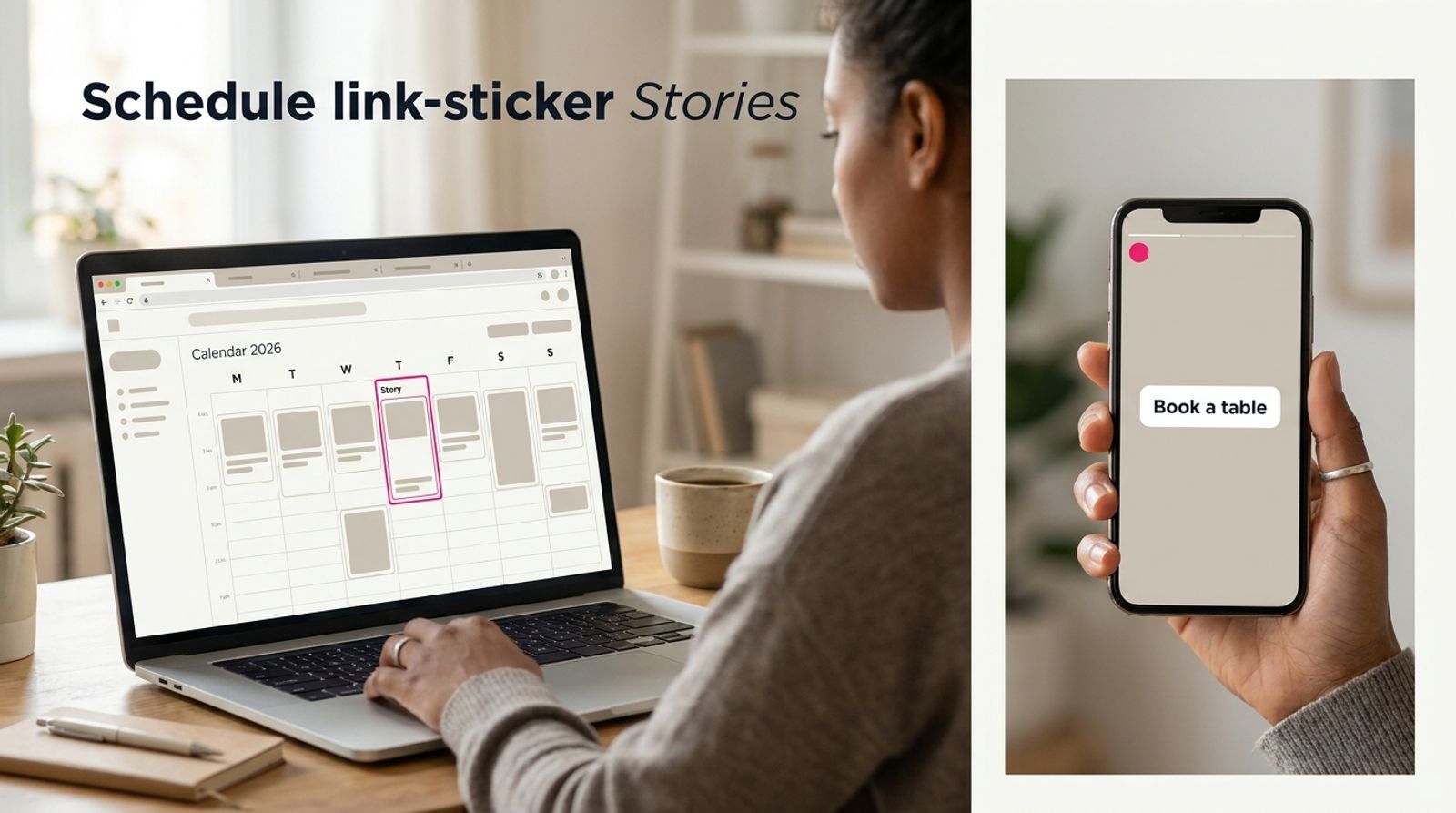
- How do you plan link-sticker Stories from your desktop?
- Where should you put a link sticker to get more taps?
- How to track link sticker clicks on scheduled Stories
- Why is my link sticker not showing? Common mistakes and fixes
- Schedule your link Stories with Sked Social
Yes, you can schedule Instagram Stories with link stickers. Instagram doesn't let third-party tools add link stickers automatically, so in Sked Social a Story with a link sticker goes out as a notification post. You plan it on desktop, Sked Social reminds you at the scheduled time, and you add the sticker and post from the Instagram app. Image and video Stories without stickers auto-publish, with no phone step.
Key takeaways
- You can schedule a link-sticker Story. In Sked Social it goes out as a notification post: you plan it on desktop, get a reminder at post time, and add the sticker in the Instagram app.
- Image and video Stories without stickers auto-publish from Sked Social. No phone step.
- In a multi-frame Story, only the frame that carries the sticker needs your phone. Schedule the other frames to auto-publish.
- Half of US adults use Instagram (Pew Research Center, 2025, 5,022 adults). A missed Story window is a missed audience.
- Put UTM parameters on every sticker URL, save link Stories to Highlights, and pair them with Sked Link so the destination stays one tap away after 24 hours.
A Story with a link sticker is the closest thing Instagram has to a "click here" button. Here's how to plan it properly instead of posting it by hand at the last minute.
Can you schedule Instagram Stories with a link sticker?
Yes. In Sked Social you schedule it like any other Story, as a notification post. At the scheduled time you get a reminder, open the Instagram app, add the sticker, and share. Everything else (the media, the URL, the timing) is decided in advance.
At a glance:
| Story type | How it goes out in Sked Social | Phone step at post time? |
|---|---|---|
| Image Story, no stickers | Auto-publishes | No |
| Video Story, no stickers | Auto-publishes | No |
| Story with a link sticker | Notification post: reminder, then you add the sticker in Instagram | Yes, a quick one |
| Story ad | Not a link-sticker format. Use the ad's own call to action | Not applicable |
What is an Instagram link sticker?
A link sticker is the tappable sticker you add to a Story to send viewers to a URL. You'll find it in the sticker tray of the Instagram Story camera. The firm limit is placement. According to Instagram's Help Center, link stickers can only be used in organic Instagram Stories, not in ads. Story ads carry their own call-to-action sticker instead.
How long does a Story link last?
A Story disappears from your profile after 24 hours. So does the link sticker on it. That's why timing matters so much. A promo Story that goes up six hours late has lost a quarter of its life before anyone sees it.
Who does this matter to?
Link Stories matter most to two groups.
- Agencies running Stories for several clients. Five clients, three promos each, every week. Remembering which link goes on which account at which hour is exactly the kind of admin that slips.
- Brands running promo Stories. A flash sale, a ticket release, a limited drop. These are time-boxed by design. Miss the window and the promo misses too.
Auto-publish vs notification posts: what's the difference?
Every scheduled Story goes out one of two ways.
Auto-publish. Sked Social posts the Story for you at the set time. Nothing happens on your phone. In Sked Social, image and video Stories without stickers go out this way.
Notification post. At the scheduled time, you get a push notification in the Sked Social mobile app. Tap Share, and Sked Social downloads your media, copies the link and opens Instagram. You add the sticker and share. It takes less than a minute, but it does need a person. In Sked Social, Stories with link stickers go out this way.
Other tools in the category, including Later, Vista Social, Publer, Agorapulse, and Storrito, each handle link-sticker Stories their own way. Before you commit to any of them, check exactly what happens to the sticker at post time. Our side-by-side of the best Instagram schedulers in 2026 is a good place to start that comparison.
How to add a link sticker to an Instagram Story
To add a link sticker, open the Story camera, add your media, tap the sticker icon, choose Link, paste your URL, then place the sticker and share. Whatever tool you plan in, this is what happens on the phone at the end, so it pays to know it cold.
- Open Instagram, tap the plus icon, and choose Story.
- Capture a photo or video, or add media from your camera roll. Vertical 9:16 media fits best.
- Tap the sticker icon at the top of the screen.
- Choose the Link sticker.
- Paste your full URL, UTM parameters included.
- If you see an option to customize the sticker text, replace the raw URL with a short call to action.
- Tap Done.
- Drag the sticker into place and pinch to resize it.
- Share to your Story.
The fiddly parts are the URL and the placement, so decide both before you open the app. For more on the native process, read our full guide on how to add a link to your Instagram Story.
How to schedule an Instagram Story with a link sticker in Sked Social
In Sked Social, schedule the plain frames to auto-publish (Path A) and the link frame as a notification post (Path B). Then add the sticker in Instagram when the reminder arrives.
Path A: a plain Story that auto-publishes
Use this for any image or video Story frame without a sticker. It goes live on its own.
- Click Create Post and choose the Instagram account you're posting to.
- Turn on Switch to Story.
- Upload your 9:16 media from your device or the Library.
- Set the date and time.
- Schedule it.
At the scheduled time, Sked Social publishes the Story. No reminder, no phone.
Path B: a link-sticker Story via notification post
Use this for the frame that carries the link. Set up on desktop, finish in Instagram.
Before you start (one-time setup):
- Turn on group notifications. Click your profile in the top right corner, choose Manage social accounts and groups, click the settings icon next to the group's name, open Notifications and opt in.
- Choose who gets notified. Select the Instagram account in the left-hand menu and add the person who will post the Story.
- Install the Sked Social mobile app. Log in, and allow push notifications when the app asks. Already have it? Check you're on the latest version.
Then schedule the Story:
- Click Create Post and choose your Instagram account.
- Turn on Switch to Story and upload your 9:16 media.
- Add your URL in the Link sticker field, UTM parameters included. Want a call to action on the sticker instead of the raw URL? Add a Link sticker label.
- Set the date and time, then schedule.
- When the push notification arrives, open it. The Sked Social app opens straight to your Story. Tap Share: Sked Social downloads your media, copies the link to your clipboard and opens Instagram. Add the link sticker, paste the link and post.
The phone step takes less than a minute because the decisions are already made. You're just adding the sticker. For screenshots of each step, see scheduling Instagram Stories with link stickers in the Sked Social Help Center.
Why split a Story sequence across two paths?
Most Story sequences only need one link frame. A product launch might run four frames: a teaser, a close-up, a price reveal, and a "shop now" frame. Only the last one needs a sticker. Schedule the first three on Path A so they auto-publish, and put just the link frame on Path B. One phone step instead of four.
Everything you schedule lands on the same calendar, so your Story plan sits next to your feed posts and Reels. For the full picture of how Stories, Reels, carousels, and feed posts publish, see how the Sked Social Instagram scheduler works.
How do you plan link-sticker Stories from your desktop?
Batch the week in one session. Upload the media, build every UTM-tagged URL, and map which frame carries the sticker. Then schedule plain frames to auto-publish and the link frame as a notification post. Stories are a phone-native format. Planning them doesn't have to be. If you're new to building Stories on a laptop, our guide to creating Instagram Stories from your laptop covers the basics.
A weekly routine that works
- Batch the week. Set aside one session to plan every Story for the next seven days. Upload all the media at once.
- Write the URLs first. Build each link with UTM parameters before you schedule anything. Keep a simple naming pattern, such as source=instagram, medium=story, and a campaign name.
- Map the frames. For each Story sequence, decide the order and which single frame carries the sticker.
- Name the finisher. Decide who gets the reminder for each link Story, and make sure they'll be free at that time.
- Schedule both paths. Plain frames on auto-publish, the link frame as a notification post.
For agencies
Line up each client's Stories against their promo calendar. If a client has a sale starting Thursday, the link Story should be in the plan by Monday, not Thursday morning.
Get sign-off before the post date. On Accelerate and Custom plans, Sked Social's approvals include external review links, so a client can review and approve a Story without logging in. That turns "did they see it?" into a clear yes or no. See how Sked Social works for agencies managing several client accounts.
For multi-location brands
Head office can plan link Stories centrally, with the right URL and the approved creative. Local teams get the reminder and add the sticker on their own account, so nobody improvises a URL at 8 am. Our page on multi-location social media management covers how head office and local teams share one plan.
Time zones
Schedule in your audience's time zone, not yours. An Australian team posting for a US audience needs the Story to land in the US morning. A 30-second check prevents a week of 3 am reminders.
Where should you put a link sticker to get more taps?
Put the sticker in the middle third of a 1080 x 1920 frame, give it a short verb-led label instead of a raw URL, and place it on the payoff frame of the sequence. A link sticker that nobody notices is just decoration.
Respect the safe zone
Design every frame at 9:16, 1080 x 1920 pixels. Keep the sticker clear of the top of the screen, where your profile name and progress bar sit, and the bottom, where the reply bar and share buttons live. The middle third of the frame is the safest bet. A sticker hidden under the reply bar might as well not exist.
Use a label, not a raw URL
A raw URL reads like small print. A short label reads like an invitation.
- "example.com/spring-sale?utm_source=instagram" tells people nothing.
- "Shop the drop" tells them exactly what happens next.
Keep labels to two to four words. Lead with a verb. "Book a table." "Get the guide." "See the range." If you want help drafting a batch of short call-to-action lines, Sked Social's AI caption writing works from your Brand Kit, so suggestions sound like you, not like a template.
Put the sticker on the payoff frame
The first frames earn attention. The last frame asks for the tap. Put the sticker where the viewer has a reason to act: after the reveal, after the price, after the "here's what you get."
A sticker on every frame dilutes it, and every extra link frame is another phone step. Unless you genuinely want the same link everywhere (say, a one-frame flash sale), save it for the frame that delivers.
Benchmark against yourself
Published link-sticker tap rates rarely come with a clear, independent method, so we're not repeating them. Your own data is more useful. For two weeks, alternate a call-to-action label with a plain URL on comparable link Stories, then compare taps per thousand viewers. Whatever wins becomes the default.
How to track link sticker clicks on scheduled Stories
Track link sticker clicks in two places: taps in Instagram's Story insights, and sessions and conversions in Google Analytics 4 from UTM parameters on every sticker URL. Taps without tracking are half a result.
Instagram's own numbers
Instagram's Story insights show how viewers interacted with each Story, including taps on your link. Stories expire, so check the numbers soon after posting and log the ones you care about.
UTM parameters on every link
Add UTM parameters to every sticker URL, so Google Analytics 4 attributes the sessions to Instagram Stories and to the right campaign. A clean set looks like this:
https://example.com/spring-sale?utm_source=instagram&utm_medium=story&utm_campaign=spring_sale
Because you write the URL during planning, the tracking is baked in before post time. A bare link pasted from memory still posts. The attribution doesn't.
Keep the link alive with Highlights
A Story link expires after 24 hours. A Highlight doesn't. Save any link Story with lasting value to a Highlight on your profile. Our guide to Instagram Story Highlights for business covers how to organize them so people actually find the link.
Pair Story links with Sked Link
Story links are time-boxed. Your bio link isn't. Sked Link is Sked Social's link-in-bio page. It tracks clicks and adds UTM tags for Google Analytics. Use it as the always-on home for the links your Stories point to. When a Story expires, the same destination is still one tap from your profile.
Report on it in one place
Sked Social's Instagram analytics bring your Instagram performance into the same workspace you plan in. Pair that with your GA4 data from the UTM-tagged links and you get both sides: what people did on Instagram, and what they did after they left.
For each link Story, record four numbers: reach, sticker taps, sessions in GA4, and conversions. Taps divided by reach tells you how persuasive the Story was. Conversions divided by sessions tells you how good the landing page was. When results dip, you'll know which half to fix.
Why is my link sticker not showing? Common mistakes and fixes
A missing link sticker usually comes down to an outdated app, an account restriction, an ad rather than an organic Story, or a post type that isn't a Story.
The sticker isn't in the tray
- An outdated app. Update Instagram first. It fixes more sticker problems than anything else.
- Account restrictions. Instagram can limit features on accounts that break its guidelines. Check your account status in the app.
- You're building an ad. Link stickers are for organic Stories only. A Story ad uses its own call to action instead.
- You're not in a Story. Link stickers are a Story feature. They don't appear on feed posts or Reels.
Scheduling mistakes
- Expecting the sticker to post itself. In Sked Social, a link-sticker Story is a notification post. If nobody acts on the reminder, the Story waits. Check the one-time setup in Path B: group notifications on, the right person chosen to receive them, and the Sked Social mobile app installed with push notifications allowed.
- A broken or untagged URL. Test every link before scheduling. Open it on a phone, confirm it loads, and check the UTMs come through in GA4's real-time view.
- Too many link frames. One link frame per sequence is usually enough. More links mean more phone steps and a weaker call to action.
Can you edit a Story after scheduling it?
Plans change. A price moves, a URL breaks, a client wants a different image. Fix the scheduled post in Sked Social before its post time rather than deleting and rebuilding it. With a notification post, you also get a last look in the Instagram app before you share.
Schedule your link Stories with Sked Social
The hard part of link Stories was never the sticker. It's everything around it. Sked Social is the social media workspace for growing teams, from first idea to final report. Here's how it fits the link Story problem:
- Plan on desktop. Build Stories in the same post editor as everything else, and see them on one calendar next to your feed posts and Reels.
- Auto-publish what can be automated. Image and video Stories without stickers go out on their own. Link-sticker Stories arrive as a reminder, so only the link frame needs your phone.
- Get approval before post day. External review links on Accelerate and Custom let clients approve without logging in.
- Track what happens next. Sked Link and Instagram analytics show the clicks, and UTM-tagged URLs carry the story into GA4.
- Get help from real humans. Support runs 24 hours a day, 5 days a week, at no extra charge.
Social media is a craft. Plan it. Don't wing it.
Ready to plan your Stories properly? Start your free trial. 14 days. No credit card required.
FAQs
Questions we get all the time.
Can you schedule Instagram Stories?
Yes. Sked Social and other third-party schedulers can schedule Instagram Stories from a desktop. In Sked Social, image and video Stories without stickers auto-publish at the time you set, so nobody needs to be on a phone. Stories with a link sticker are scheduled as notification posts, which you finish in the Instagram app when the reminder arrives.
Does Sked Social auto-publish Stories with link stickers?
No. In Sked Social, a Story with a link sticker goes out as a notification post. You plan the media and the URL on desktop, and Sked Social sends a reminder to the mobile app at the scheduled time. You then open Instagram, add the link sticker, and share the Story. Image and video Stories without stickers auto-publish with no phone step.
What happens at post time with a notification post?
At the scheduled time, the Sked Social mobile app sends you a push notification. Open it and the app goes straight to your Story. Tap Share, and Sked Social downloads your media, copies the link to your clipboard and opens Instagram. Add the link sticker, paste the link and post. Because the media, URL and timing were decided in advance, the phone step usually takes less than a minute.
Why can't I find the link sticker on my Instagram Story?
The link sticker lives in the sticker tray of the Instagram Story camera. If it's missing, update the Instagram app first, then check your account status, because Instagram can limit features on accounts that break its guidelines. Link stickers only appear when you create a Story, not on feed posts or Reels, and they work in organic Stories only, not in ads.
Can you use link stickers in Instagram ads?
No. According to Instagram's Help Center, link stickers can only be used in organic Instagram Stories. Story ads use their own call-to-action sticker, which Instagram places automatically. If you are planning a paid push, use the ad's call to action and keep link stickers for your organic Stories, where you can schedule them as notification posts.
How do you keep a Story link working after 24 hours?
A Story and its link sticker disappear from your profile after 24 hours. Save any link Story with lasting value to a Highlight so the link stays on your profile. You can also point the same destination from your link-in-bio page, such as Sked Link, so it stays one tap away after the Story expires.
How do you track clicks on an Instagram Story link?
Check link taps in Instagram's Story insights soon after posting, because Stories expire. Then add UTM parameters to every sticker URL so Google Analytics 4 attributes sessions and conversions to Instagram Stories and the right campaign. Comparing taps with reach shows how persuasive the Story was, and conversions with sessions shows how well the landing page worked.